Before You Go Out: Charge and Protect Your Phone
At -5°C on Iceland’s coast, a fully charged iPhone can lose 40–50% of its battery within 30 minutes if left exposed to the air. This is the single most common reason tourists return home without aurora photos.
Two rules that make a bigger difference than any camera setting:
- Charge to 100% before leaving your accommodation. Do not gamble on 80%.
- Keep your phone in an inside jacket pocket until you are ready to shoot. The heat from your body slows battery drain dramatically. Take it out, shoot a few frames, pocket it again.
A compact portable battery bank in the same inside pocket adds a useful insurance layer for outings longer than an hour. Cold affects the battery bank too, so keep it warm.
iPhone Night Mode Settings for the Aurora
Night Mode activates automatically in low light on iPhone 11 and later. The default automatic behaviour is a starting point, but adjusting the exposure time makes a significant difference.
Bright, active aurora (Kp 3 or higher, visible movement in the sky): Pull the Night Mode exposure slider down to 1–4 seconds. Longer exposures blur fast-moving curtains into a uniform green wash — you lose all the structure. Tap the moon icon at the top of the Camera app and drag the slider left to shorten the exposure.
Faint aurora (Kp 1–2, a pale arc low on the horizon): Push to 8–15 seconds. More time means more photons reaching the sensor. The practical ceiling outdoors is around 15 seconds — beyond that, star trails become visible and the horizon blurs if there is any wind vibration.
Do not use the flash. It illuminates the ground a few metres in front of you and ruins the night exposure. Avoid digital zoom as well — it degrades the image significantly in low light. Move your feet instead.
If you have an iPhone 12 or later, enable Apple ProRAW before heading out (Settings > Camera > Formats > Apple ProRAW). ProRAW captures far more dynamic range than a JPEG, giving you the latitude to bring out aurora colour and shadow detail in post-processing without clipping. In bright conditions the difference is minimal; in a faint aurora display it is the difference between a grey smear and a photograph worth keeping.
A Tripod Is Not Optional
The aurora does not hold still, but your phone must. Even a 2-second Night Mode exposure hand-held will produce noticeable blur. Iceland adds another variable: wind. On Iceland’s exposed coastlines — particularly at Grótta Lighthouse, which has no natural wind shelter — even a light tripod will shake without ballast.
Practical setup for Iceland conditions:
- Use a phone tripod mount (a Joby GorillaPod with a phone clamp, or any standard mount) rather than propping the phone on a rock. Rocks limit your framing and are rarely at the angle you need.
- Hang a bag or a full water bottle from the tripod’s centre column. This weights the legs against gusts and is standard practice among landscape photographers at exposed Icelandic spots.
- Use the 2-second shutter delay in the Camera app (tap the arrow at the top, select the timer icon) so that pressing the shutter button does not transmit vibration to the phone. A Bluetooth remote shutter achieves the same result and avoids reaching down to the screen in the dark.
For technique that applies to dedicated cameras as well as iPhones, see our aurora photography settings guide.
Choosing the Right Spot
Not every aurora viewing spot is equally well suited to phone photography. The three variables that matter most are wind exposure, light pollution level, and the presence of a compelling foreground.
Wind-sheltered spots — better for tripod stability:
Þingvellir National Park is Iceland’s rift valley, where the Eurasian and North American tectonic plates meet. The valley walls provide genuine wind protection when the prevailing south-westerlies are blowing. The dark skies and the geology — rows of lava columns, a still lake, wooden bridges — provide excellent foregrounds.
Kirkjufell Mountain on the Snæfellsnes Peninsula is partially sheltered by the mountain mass itself when winds come from the east, and Kirkjufellsfoss waterfall in the foreground is one of the most recognised aurora compositions in Iceland.
Exposed but spectacular:
Jökulsárlón Glacier Lagoon sits on the south coast fully exposed to North Atlantic weather. Bring a heavy tripod and be prepared to weight it. The reward is extraordinary: icebergs calved from the Vatnajökull glacier floating in the lagoon, lit green by the aurora above. Diamond Beach, immediately across the road, offers the same light on black sand studded with glacial ice.
Grótta Lighthouse is accessible from Reykjavik city centre in under 20 minutes, which makes it the most practical option for short visits or late-night outings. It sits on a tidal peninsula with open water on three sides. The lighthouse silhouette provides a ready-made foreground, but the wind can be severe.
Before driving anywhere, check the live aurora forecast to see the real-time score for each spot. A score above 45 (Good) is the threshold at which iPhone photos reliably come out with visible colour and structure. Below 15, even a dedicated camera will struggle.
Composing the Shot and Processing Afterwards
A green band of aurora filling the sky is visually striking in person. In a photograph, without a foreground or sense of scale, it often reads as an undifferentiated blob of green. A few principles that work specifically in Iceland:
- Use a low camera angle. Position the phone low and tilt up. This maximises the sky-to-ground ratio, makes the aurora appear larger, and includes more of the landscape in the lower third.
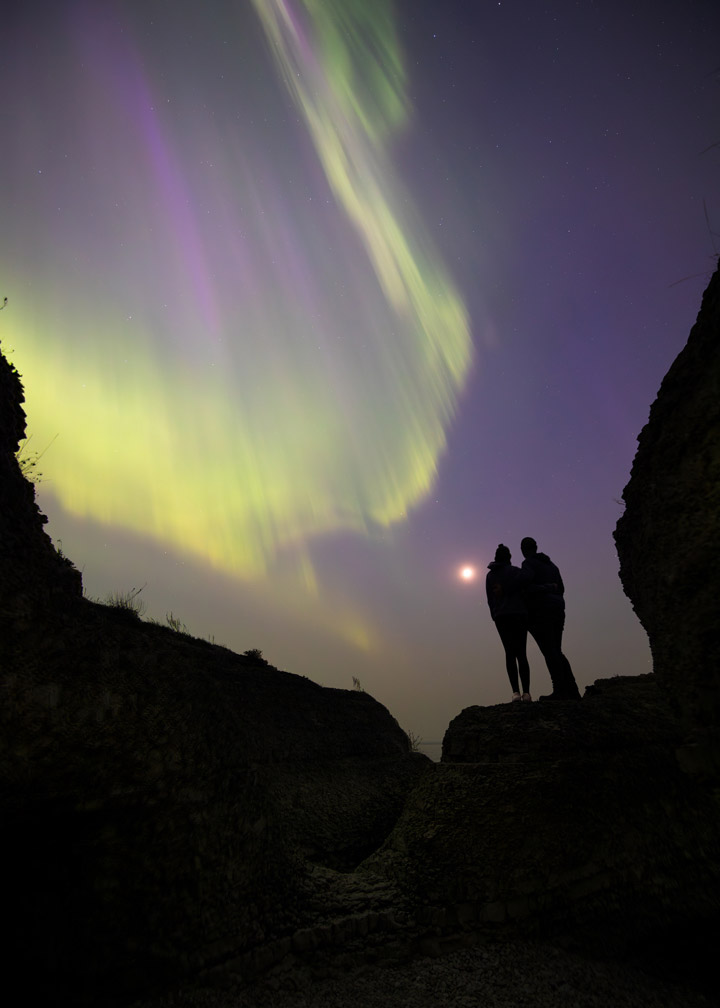
- Put something in the foreground. A lighthouse, a standing figure (use the self-timer and step into the frame), water reflections, or a piece of glacial ice immediately improves the image.
- Review your shots every 5 minutes and adjust. If the aurora is bright and your image is overexposed, reduce the Night Mode slider by 2–3 seconds. If the display fades, add time back.
- Shoot horizontal for prints and landscape use; vertical for social media. Night Mode works in both orientations.
If you shot in ProRAW, the file opens in the native Photos app with full editing sliders. Reduce warmth slightly to cool the tones — this makes the green stand out. Boost Vibrance rather than Saturation to lift muted colours without blowing the already-bright aurora band. If you shot at long exposures and see grain, Lightroom Mobile’s Luminance Noise reduction handles ProRAW files well.
The Aurora Iceland app gives you live per-spot forecasts updated every five minutes — it is the fastest way to decide when the display is bright enough to be worth the cold, and exactly which of our 100+ scored spots has the clearest sky overhead.